Can’t Select Vertex Group of Armature in Blender (2026 Guide): 9 Fixes That Work
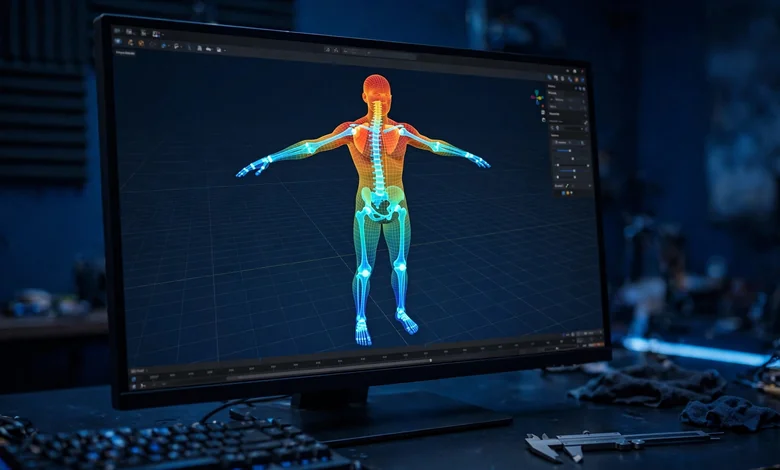
You’re in Weight Paint mode, your armature is right there, and no matter what you click, the bones won’t select — so you can’t activate the vertex group you need to paint. If you can’t select vertex group of armature in blender, you’re dealing with one of the most common rigging roadblocks in the software, and the fix is almost always a mode or selection-order issue, not a broken file.
The short answer: Select the armature, press Ctrl+Tab to enter Pose Mode, turn off “Lock Object Modes” in the top bar, Shift-select the mesh, switch to Weight Paint Mode, make sure “Bone Selection” is enabled in the viewport header, then click a bone with Alt+Left Click (Blender 4.1 and newer). That activates the bone’s vertex group so you can paint it.
In this guide, we’ll walk through that quick fix step by step, explain what’s actually happening under the hood, and then cover 9 specific reasons you can’t select vertex group of armature in blender — with a fix for each one. Whether you’re on Blender 4.0, 4.1, or the 4.5 LTS, you’ll find your answer here.
- The Quick Fix (Most People Only Need This)
- First, Understand What You’re Actually Selecting
- Fix 1: Vertex or Face Selection Mode Is Turned On
- Fix 2: You Selected the Objects in the Wrong Order
- Fix 3: Bone Selection Is Disabled in the Header
- Fix 4: You’re Using the Wrong Shortcut for Your Blender Version
- Fix 5: The Bones Are Buried Inside the Mesh
- Fix 6: The Armature Isn’t Parented to the Mesh
- Fix 7: You’re Clicking in the Wrong Mode
- Fix 8: You’re Clicking the Wrong Armature (Rigify Users)
- Fix 9: The Bone Has No Vertex Group Yet
- Shortcut Cheat Sheet by Blender Version
- Habits That Prevent This Problem
- Frequently Asked Questions
- Conclusion
The Quick Fix (Most People Only Need This)
Before we dig into the nine individual causes, try this exact sequence. It resolves the ‘can’t select vertex group of armature in blender’ problem for the large majority of users, because it puts Blender into the one specific state where bone selection works.
- Select the armature in the 3D Viewport or Outliner.
- Press Ctrl+Tab to put the armature into Pose Mode.
- Turn OFF “Lock Object Modes” — find it in the top bar of the 3D editor and make sure it is unchecked. This is the step most tutorials skip, and it’s the single most common culprit.
- Shift-select the mesh — hold Shift and click the mesh object so both the armature and mesh are selected, with the mesh active (highlighted brighter).
- Switch to Weight Paint Mode (Ctrl+Tab again, or the mode menu in the header).
- Enable “Bone Selection” in the 3D Viewport’s header — it’s a small bone icon. If it’s off, bones can’t be picked.
- Click a bone with Alt+Left Click (Blender 4.1 and newer; Ctrl+Left Click in 4.0). The bone’s vertex group activates, its weights appear on the mesh, and you can paint with the left mouse button.
The bottom line: Bone selection only works in a very specific configuration — armature in Pose Mode, Lock Object Modes off, mesh in Weight Paint Mode, Bone Selection enabled. Miss any one of those, and clicks do nothing (or worse, erase weight). If the sequence above fixed it, you’re done. If not, work through the nine fixes below.
First, Understand What You’re Actually Selecting
It helps to know what Blender thinks you’re doing. When you rig a character, each deform bone gets a vertex group with the same name — and the Armature modifier uses those groups to decide which bone moves which vertices.
So “selecting the vertex group of the armature” really means: click a bone to activate the vertex group named after it. You’re not selecting the group from a list — you’re telling Blender “I want to paint weights for this bone,” and Blender activates the matching group. If the group doesn’t exist yet, Blender creates it automatically the moment you start painting.
That’s why the failure is so confusing — the classic can’t select vertex group of armature in blender situation. You can see the vertex groups in the Object Data Properties panel. They exist. But clicking bones in the viewport doesn’t activate them — because the viewport interaction depends on modes, selection order, and header toggles, not on the groups themselves.
Fun fact: You can only activate one bone’s vertex group at a time this way. If you need to compare two groups, you’ll have to switch between them — or use the vertex group list in the Properties panel to inspect weights directly.
Fix 1: Vertex or Face Selection Mode Is Turned On
This is the classic. In Weight Paint Mode, the 3D Viewport header has toggle buttons for vertex selection and face selection. When either is on, your clicks select geometry — not bones. Blender treats every click as a mesh operation, so bone picking silently stops working.
This trips up even experienced users, because the toggles are easy to hit accidentally and there’s no warning — bone selection just quietly stops. If your clicks suddenly started erasing weight or selecting verts instead of bones, the ‘can’t select vertex group of armature in blender’ complaint is almost always these toggles — check them first.
Fix 2: You Selected the Objects in the Wrong Order
Blender is picky about selection order here. The correct sequence is: select the armature first, then Shift-select the mesh. The mesh must end up as the active object (the brighter highlight), with the armature also selected.
If you do it backwards — mesh first, then armature — entering Weight Paint Mode can land you in a confused state where the armature is in Object Mode instead of Pose Mode, and bone picking fails. Some users report that shift-selecting just toggles them between the mesh’s Weight Paint Mode and the armature’s Object Mode instead of giving them the mixed state they need.
There’s a related gotcha: “Lock Object Modes” must be off. This toggle lives in the top bar. When it’s on, Blender forces every selected object into the same mode, which breaks the mixed Pose Mode + Weight Paint Mode combination entirely. The official Blender manual specifically calls this out: uncheck it before entering Weight Paint Mode with an armature.
The fix: Go back to Object Mode, select the armature, Shift-select the mesh (mesh active), confirm Lock Object Modes is off, then enter Weight Paint Mode. If you want to be extra careful, put the armature in Pose Mode (Ctrl+Tab) before shift-selecting the mesh — several veteran riggers swear by this order. Getting the order wrong is one of the most common reasons people can’t select vertex group of armature in blender.
Fix 3: Bone Selection Is Disabled in the Header
Weight Paint Mode has a dedicated “Bone Selection” toggle in the 3D Viewport header — it looks like a small bone icon. When it’s disabled, clicks pass straight through bones as if they weren’t there — and you can’t select vertex group of armature in blender at all.
The fix: In Weight Paint Mode, find the bone icon in the viewport header and make sure it’s enabled (highlighted). Then click a bone with the correct shortcut for your version. Per the Blender 4.5 manual, the workflow is: armature in Pose Mode, Lock Object Modes off, mesh in Weight Paint Mode, Bone Selection on, then Alt+Left Click (or Shift+Ctrl+Left Click) to activate the bone’s vertex group.
Fix 4: You’re Using the Wrong Shortcut for Your Blender Version
This one causes endless confusion because the shortcut changed between versions:
- Blender 4.0: Ctrl+Left Click selects a bone in the mixed Weight Paint/Pose state.
- Blender 4.1 and newer (including 4.5 LTS): Alt+Left Click selects a bone (Shift+Ctrl+Left Click also works).
If you learned the shortcut from an older tutorial and you’re on a newer Blender — or vice versa — your clicks will do something unexpected, like painting or erasing weight instead of selecting. That “my cursor just removes weight from the mesh” complaint is this exact issue — the version-mismatch behind countless “can’t select vertex group of armature in blender” searches.
There’s also a lesser-known viewport menu: right-clicking the mesh in Weight Paint Mode opens a vertex groups context menu, giving you direct access to groups from the viewport — including groups that don’t come from deform bones. It’s a handy backup when bone picking isn’t cooperating.
The fix: Check your Blender version (Help → About, or the splash screen), then use the matching shortcut. If you’ve customized your keymap, search it for the bone-selection binding — custom keymaps are a silent cause of “the shortcut doesn’t work.”
Fix 5: The Bones Are Buried Inside the Mesh
Sometimes everything is configured correctly and you still can’t click a bone — because you literally can’t see it. Bones are often embedded inside the character mesh, which makes them invisible and unselectable in the viewport. When you can’t select vertex group of armature in blender despite every setting looking right, visibility is the next suspect.
The fix: Select the armature, go to its Object Data Properties (the little running-man icon), open the Viewport Display panel, and enable “In Front.” This draws the bones on top of the mesh so you can always see and click them. Alternatively, toggle X-ray mode in the viewport header. The Blender manual itself recommends the In Front option for exactly this situation.
Fun fact: This is also why some riggers work with the armature on a separate, simplified display while weight painting — fewer clicks wasted hunting for bones hidden inside a torso.
Fix 6: The Armature Isn’t Parented to the Mesh
Bone selection in Weight Paint Mode assumes the mesh and armature have a working relationship. If you never parented the mesh to the armature, Blender has no deform setup to work with, and the whole bone-picking workflow falls apart. Without parenting, you can’t select vertex group of armature in blender — there’s simply no deform relationship for the workflow to use.
The fix: In Object Mode, select the mesh first, then Shift-select the armature (armature active — the opposite order from the weight-paint workflow), press Ctrl+P, and choose Armature Deform. Pick “With Automatic Weights” for a starting point, “With Empty Groups” if you want to paint everything manually, or “With Envelope Weights” for envelope-based deformation. Then retry the weight-paint selection sequence.
One critical detail from experienced riggers: when parenting, make sure the armature is the active object (selected last, highlighted brighter). If the mesh is active instead, the parenting can silently misbehave.
Fix 7: You’re Clicking in the Wrong Mode
Bone picking for vertex groups does not work in Object Mode, and it doesn’t work in plain Pose Mode either. It works in one specific hybrid state: the mesh in Weight Paint Mode while the armature behaves as if in Pose Mode. The Blender manual describes entering it by selecting the armature, going to Pose Mode with Ctrl+Tab, then selecting the mesh and entering Weight Paint Mode.
If you’re in Object Mode clicking bones, nothing useful happens. If you’re in Edit Mode, you’re editing geometry. The mode matters more than anything else in this workflow — get it wrong and you can’t select vertex group of armature in blender, period.
The fix: Follow the quick-fix sequence at the top of this article exactly, and watch the mode indicator in the top-left of the viewport. You want it to say “Weight Paint” with the mesh active — while the bones remain pose-selectable. That hybrid state is the goal.
Fix 8: You’re Clicking the Wrong Armature (Rigify Users)
If you used Rigify, your scene probably contains two armatures: the metarig you used to generate the rig, and the generated control rig (usually just named “rig”). Both are technically armatures as far as Blender is concerned — but only the generated rig actually deforms your character.
Users get stuck here constantly: they select the metarig, follow every tutorial step perfectly, and bone selection still fails — because the metarig isn’t parented to the mesh and has no deform relationship with it. It’s the hidden ‘can’t select vertex group of armature in blender’ trap for Rigify users.
The fix: In the Outliner, identify the generated rig (not the metarig), and use that for the entire workflow: select the generated rig, Pose Mode, Shift-select the mesh, Weight Paint Mode. Once you’re done rigging, you can hide or even delete the metarig — but don’t click it expecting deform behavior.
Fix 9: The Bone Has No Vertex Group Yet
Sometimes the bone selects fine, but nothing seems to happen — no weights appear, no group activates. That’s usually because the bone doesn’t have a vertex group yet, which is normal for bones added after the initial parenting, or when you parented “With Empty Groups.”
The fix: Good news — you don’t actually need to fix anything. Per the Blender manual, if a bone doesn’t have a vertex group yet when you start painting, Blender creates one automatically. Just select the bone and paint; the group appears in the vertex group list with the bone’s name.
If you prefer to set things up manually, select the mesh, go to Object Data Properties → Vertex Groups, click the + button, and name the new group exactly like the bone (case-sensitive). For symmetrical characters, the “Mirror Vertex Groups” operator can generate the matching groups for the other side automatically.
The bottom line: A missing vertex group is not an error — it’s a starting condition. Paint, and Blender handles the rest.
Shortcut Cheat Sheet by Blender Version
| Action | Blender 4.0 | Blender 4.1 – 4.5 LTS |
|---|---|---|
| Armature → Pose Mode | Ctrl+Tab | Ctrl+Tab |
| Select bone in Weight Paint Mode | Ctrl+Left Click | Alt+Left Click (or Shift+Ctrl+Left Click) |
| Vertex groups context menu | Right Click on mesh | Right Click on mesh |
| Paint weights | Left Click / drag | Left Click / drag |
| Show bones through mesh | Viewport Display → In Front | Viewport Display → In Front |
Fun fact: Shortcut changes between 4.0 and 4.1 are one of the biggest sources of outdated-tutorial confusion in Blender rigging. When a tutorial’s clicks don’t match your Blender, check the version first — it’s faster than rewatching the video.
Habits That Prevent This Problem
Once you’ve fixed it, a few habits keep the ‘can’t select vertex group of armature in blender’ problem from coming back:
- Always check Lock Object Modes first. Make it muscle memory: top bar, unchecked, before entering Weight Paint Mode.
- Use a consistent selection order. Armature first, Shift+mesh second, every time.
- Keep “In Front” on for rigging armatures. Visible bones are clickable bones.
- Name bones before parenting. Vertex groups inherit bone names; renaming later means renaming groups too.
- Save before weight painting. Automatic weights and painting are destructive-ish workflows — a save point costs nothing.
- Test with a simple pose early. Rotate a bone after painting and watch the mesh. Catching a bad group assignment at the elbow stage beats discovering it at the animation stage.
For more hands-on tech guides like this one, Daily Orvix publishes practical how-tos across software, careers, and everyday tech — worth a look the next time Blender throws you a curveball.
Frequently Asked Questions
Why can’t I select bones in Weight Paint mode in Blender?
The most common reasons are: vertex or face selection mode is turned on in the viewport header, “Lock Object Modes” is enabled, “Bone Selection” is disabled in the header, you used the wrong selection order, or you’re using the bone-select shortcut from a different Blender version. Work through the nine fixes above in order, and the “can’t select vertex group of armature in blender” issue resolves.
What is the shortcut to select a bone in Weight Paint mode?
In Blender 4.1 and newer (including 4.5 LTS), click the bone with Alt+Left Click. In Blender 4.0, it’s Ctrl+Left Click. Make sure Bone Selection is enabled in the viewport header first.
How do I activate a vertex group for a bone?
Click the bone in Weight Paint Mode with the correct shortcut. Blender activates the vertex group named after that bone. If no group exists yet, Blender creates one automatically when you start painting.
Why does clicking a bone erase weight instead of selecting it?
You’re clicking with the paint brush active but the bone isn’t being selected — usually because you’re using the wrong shortcut for your Blender version, or Bone Selection is off. The click registers as a paint stroke (with a subtract brush, it erases). Fix the selection setup, then click again.
Do I need to parent the mesh to the armature first?
Yes. Select the mesh, Shift-select the armature (armature active), press Ctrl+P, and choose Armature Deform. Without parenting, there’s no deform relationship for the weight-paint workflow to use.
What’s the difference between the metarig and the rig in Rigify?
The metarig is the template you position to match your character; the generated “rig” is the full control rig that actually deforms the mesh. For weight painting and bone selection, always use the generated rig — never the metarig.
Can I select multiple bones’ vertex groups at once?
No — Blender only lets you activate one bone’s vertex group at a time in Weight Paint Mode. Switch between bones to compare or paint different groups.
Conclusion
The “can’t select vertex group of armature in blender” problem feels like a bug, but it’s really a configuration puzzle. The entire feature hinges on one precise setup: armature in Pose Mode, Lock Object Modes off, mesh in Weight Paint Mode, Bone Selection enabled, and the right click for your version. Get those five things right and bone selection just works.
If it still fails after the quick fix, the nine causes above cover essentially every reported instance of this problem — from the buried-bones visibility trap to the Rigify metarig mix-up to the version-changed shortcut. One of them is your culprit.
And remember the reassuring part: a missing vertex group isn’t an error at all. Select the bone, start painting, and Blender creates the group for you. Sometimes the software is smarter than the workflow feels.
Read Also: FLVTO (2026 Guide): What It Is, How the YouTube to MP3 Converter Works